How to use LeadForge
For version 1.1 · about ten minutes to read
LeadForge finds local businesses on Google Maps and collects the contact details they publish — phone, email, website and social profiles — so you can reach out to them. This guide walks through the whole workflow, from installing it to sending your first email.
1. Install and open
- Add it to Chrome. Open LeadForge on the Chrome Web Store and press Add to Chrome. It is free, and there is no account to create.
- Pin it. Press the puzzle-piece icon in Chrome's toolbar, then the pin next to LeadForge, so it is one click away.
- Open it. Click the LeadForge icon, or press Alt Shift L. It opens in Chrome's side panel, next to whatever page you are on. The open in a full tab button at the top gives it the whole window.
The first time it opens, a short welcome shows the three steps. Press ? at any time for the built-in guide.
2. Run a search
- What: a business type — dentists, gyms, plumbers. The chips under the box fill in common ones.
- Where: a town or a neighbourhood — Austin, TX or Anna Nagar, Chennai. Several places work in one search: separate them with a semicolon. The map button lets you drop a pin and draw a circle instead.
- Options (optional): how many leads you want, which sources to use, and whether to deep-scan listings. The defaults are good for a first search.
- Press Find leads.
A Google Maps tab opens in its own tab group and scrolls through the results. Leave it in front — Chrome slows down tabs you cannot see. When the search finishes, the tab closes and your own tab comes back. You can press Stop at any time and keep what was found.
3. Read the results
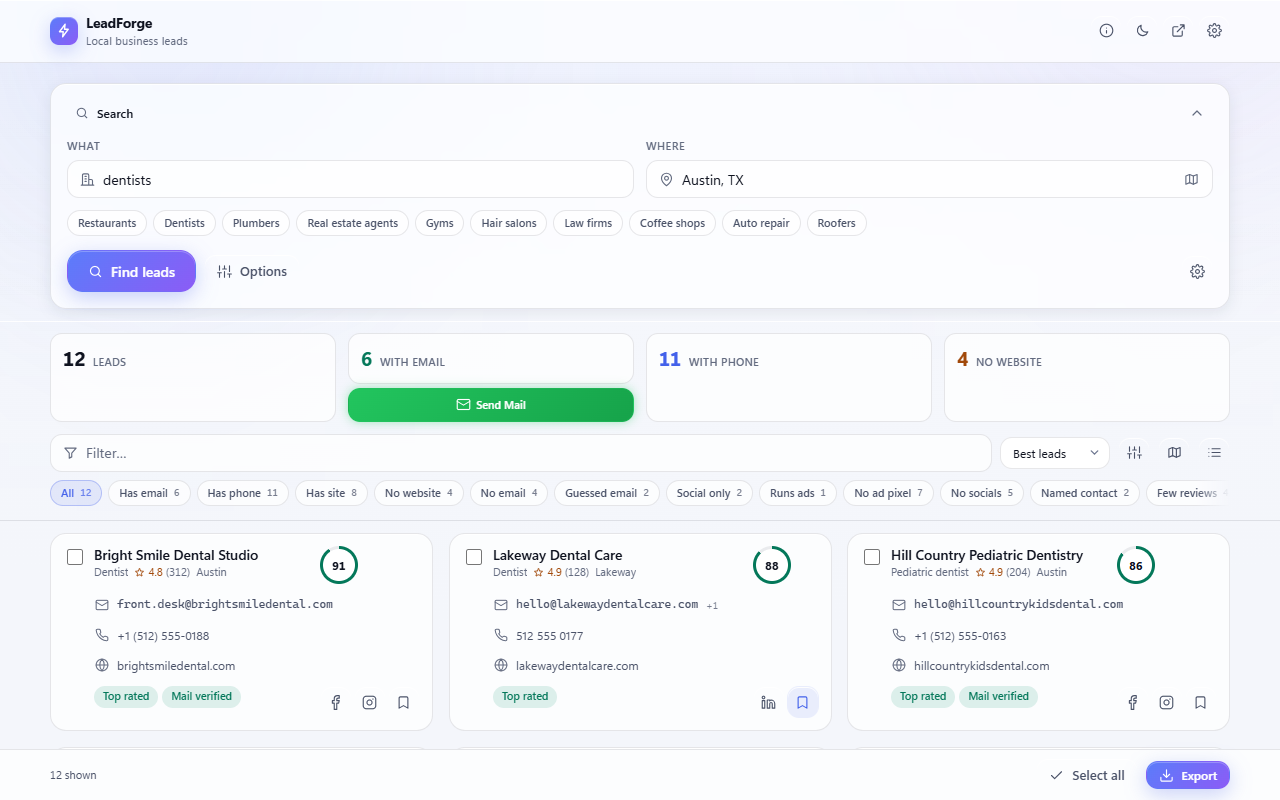
- The counters at the top show how many leads have an email, a phone, or no website.
- The score (0–100) on each card ranks how complete and how promising a lead is. Best leads sorts by it.
- Tags explain the score: No website, Few reviews, Top rated, Mail verified, Guessed email.
- The filter chips narrow the list in one click — Has email, No website, Runs ads, Named contact, To contact. The box beside them searches by name, email or address.
Emails come from each business's own website. When a business publishes none, LeadForge can suggest a common address such as info@. Those are always marked guess — prefer published addresses for outreach.
4. Open a lead
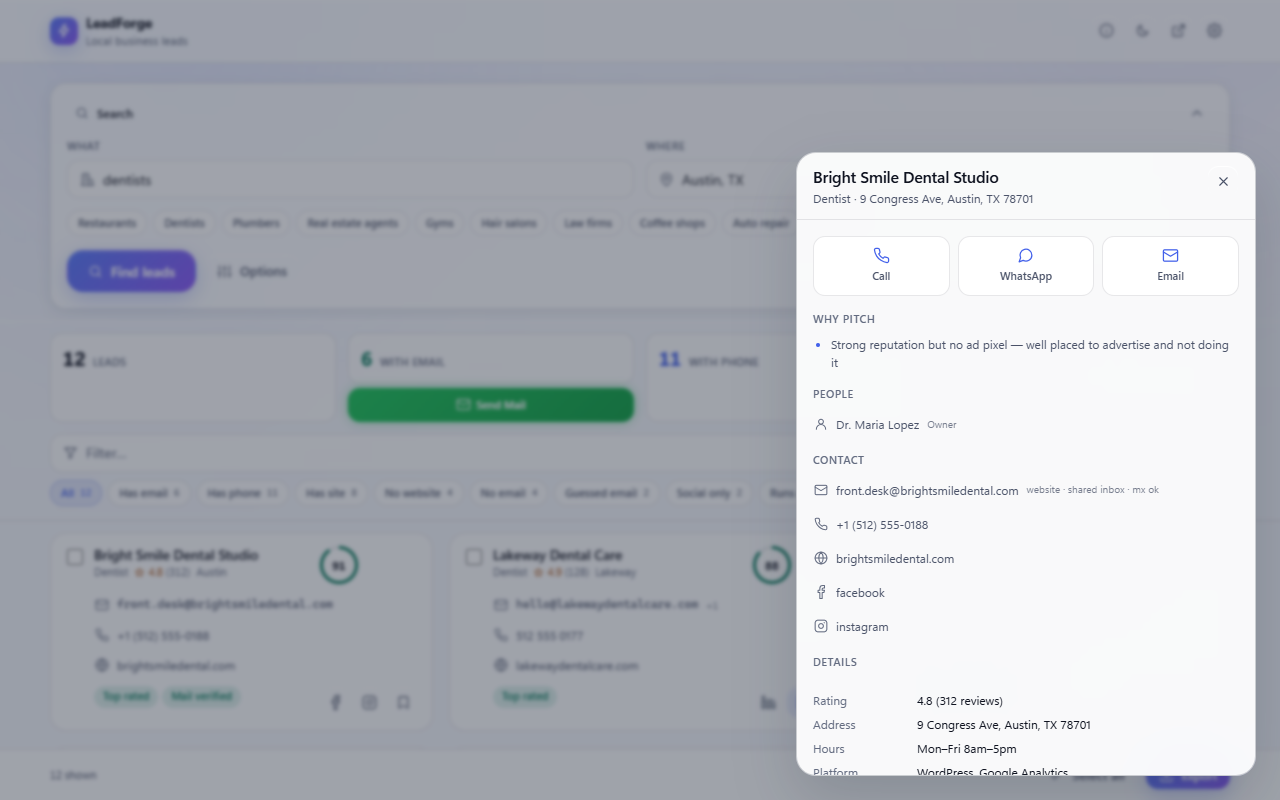
Click a card to see everything about that business:
- Why pitch — plain reasons it may need you: no website, an unclaimed listing, few reviews, no ad tracking.
- People — the owner's or manager's name, when the business publishes it.
- Call, WhatsApp, Email — one tap each.
- Notes and status — save a lead, mark it contacted, or block it so it never comes back.
- Re-check — read the business's website again for contact details.
5. Map and filters
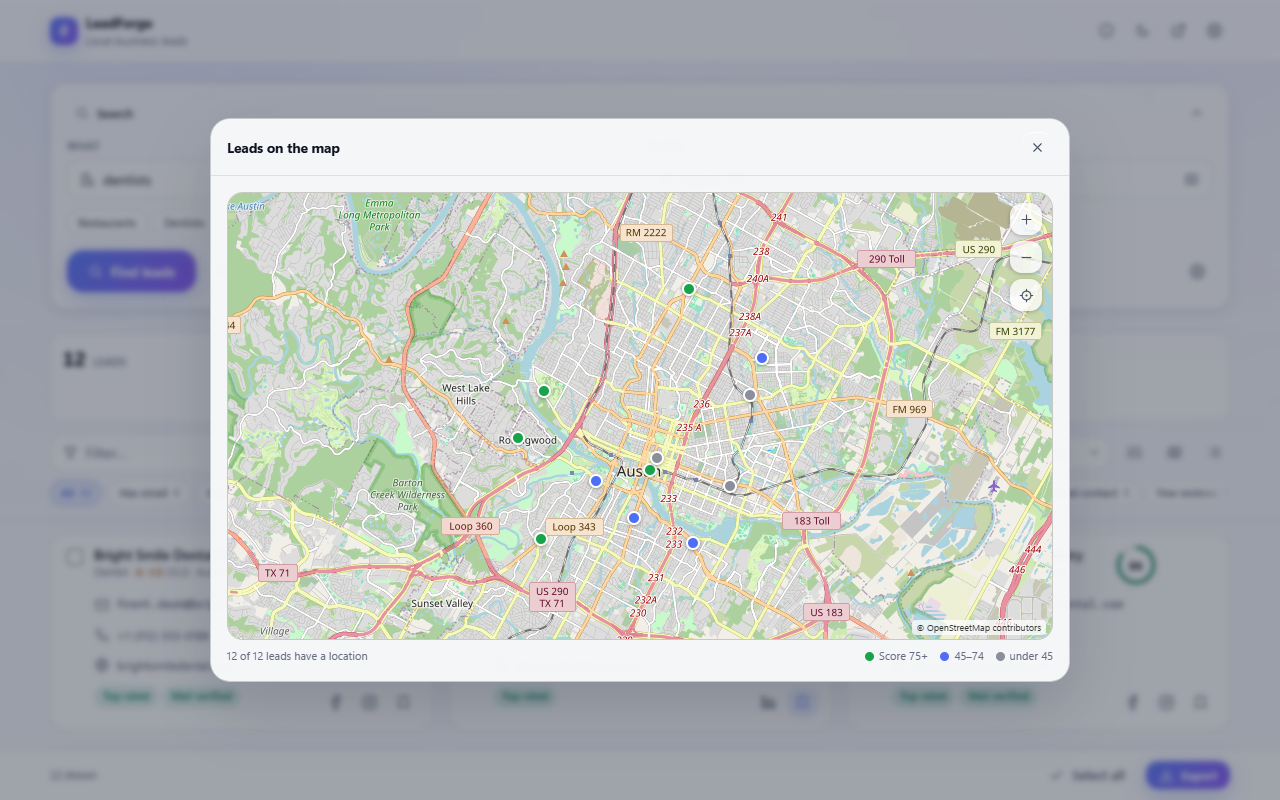
The map button above the list shows every lead as a pin, coloured by score. The sliders button opens Refine: a rating range, a review-count range, unclaimed listings only, and businesses with opening hours. Together with the filter chips — has email, no website and the rest — it narrows the list to exactly the leads you want. Rating, review and website limits can also be set before a search, in Settings › Discovery, so no time is spent on businesses you would filter out anyway.
6. Export
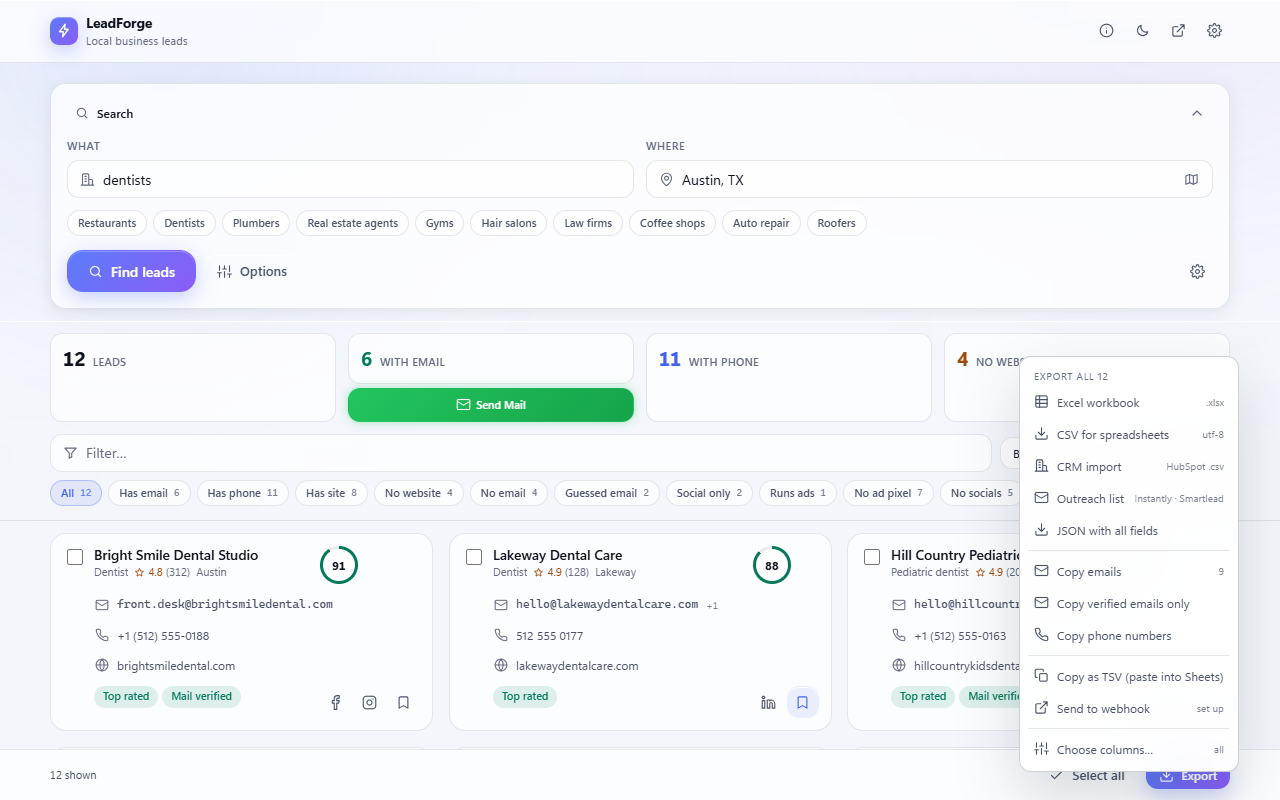
Press Export at the bottom. It exports what the list shows, or only the leads you ticked.
- Excel workbook or CSV — choose your columns once with Choose columns.
- CRM import — a CSV shaped for HubSpot and similar CRMs.
- Outreach list — email, first name and company, ready for Instantly, Smartlead and similar tools.
- Copy emails, verified emails, phone numbers, or rows to paste into Google Sheets.
- Send to webhook — post leads to Zapier, Make, n8n or a Google Apps Script.
7. Cold email and AI
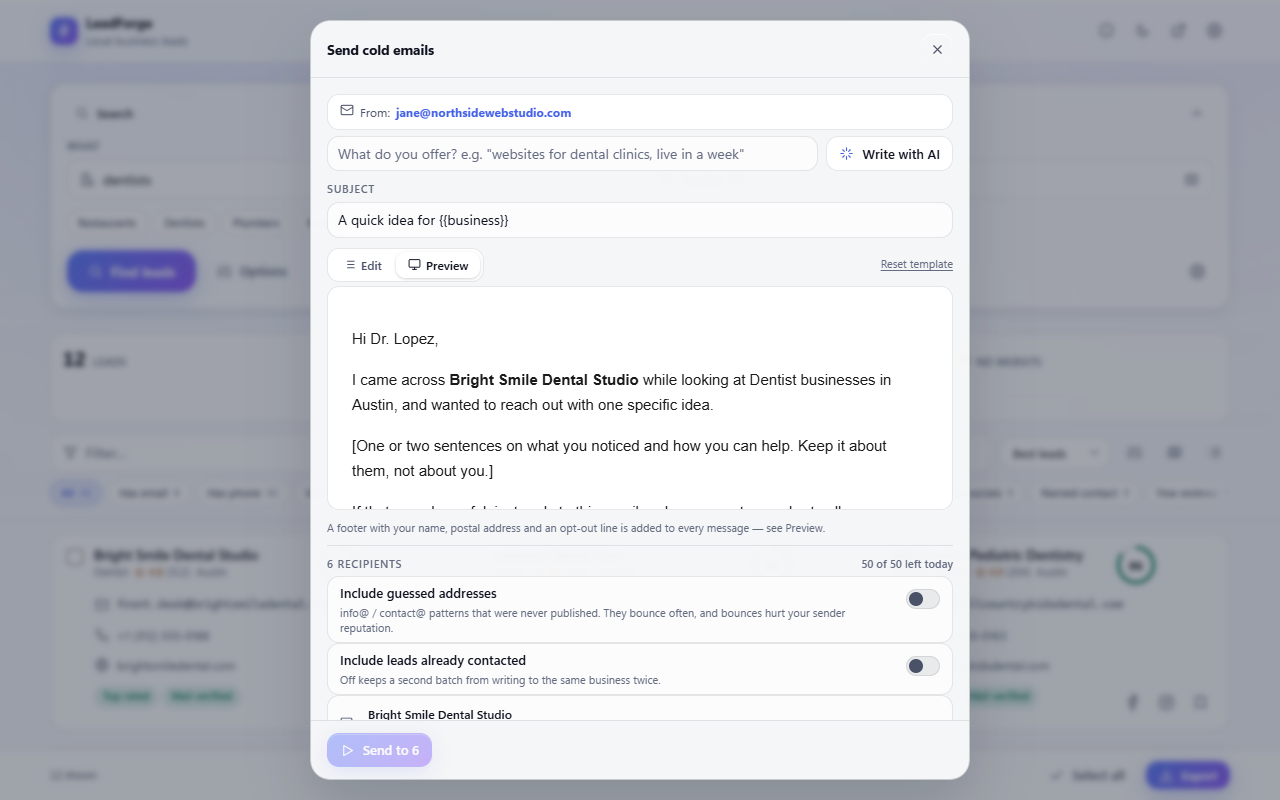
- Connect your mailbox in Settings › Cold Email (Zoho Mail). Messages are sent from your own address.
- Add your name and postal address. Anti-spam laws require both, and LeadForge puts them, with an opt-out line, in the footer of every message.
- Write the email with placeholders such as
{{name}},{{business}}and{{city}}, and check it in Preview. - Or let AI draft it. Pick a provider in Settings › AI writing — Claude, OpenAI, Groq, Gemini, OpenRouter, Mistral, DeepSeek or your own server — paste your own API key, then type one line about what you offer and press Write with AI.
- Press Send. A daily limit and a pause between messages protect your mailbox. Guessed addresses and leads you already contacted are skipped unless you include them.
8. Automate
- Re-run a search daily, every three days or weekly (Settings › Automation). Only businesses that are new since last time are added.
- Send new leads automatically to your webhook when a search finishes — the way to keep a sheet or CRM filling itself.
- Get a Telegram message when a search finishes.
- Skip leads you already have: in Options › Leads you already have, upload a previous Excel or CSV export, and the next search returns only what is new.
9. Back up and move to another computer
Your leads live in this browser only. To keep them safe or move them, open Settings › Data › Back up: one file with your leads, saved searches, blocklist and settings. On the other computer, install LeadForge and press Restore. Nothing already there is deleted. Keys and passwords are never put in a backup, so you enter them again after a restore.
10. Tips for better results
- A neighbourhood returns more complete results than a whole country. Search several neighbourhoods at once with semicolons.
- Raise How many leads for a big city; when Maps runs out, the search widens itself with related terms and smaller areas.
- Keep Deep scan on: it opens each listing for the phone and website Maps shows only after a click.
- Set Phone number region in Settings › Appearance if numbers come out without their country code — WhatsApp needs it.
- On any Google Maps page you are browsing, the floating LeadForge button saves the businesses on screen.
Questions
Why did a search stop before my number?
The area ran out of businesses that match. Try a wider area, more places, or a broader term — "clinic" as well as "dentist".
Why does a lead have no email?
Not every business publishes one. Open the lead and press Re-check, or use the phone or WhatsApp instead.
Why does a Google Maps tab keep coming to the front?
That is the search running. Chrome slows hidden tabs, so the Maps tab stays in front until the search ends.
Is my data uploaded anywhere?
No. LeadForge has no account and no server. Leads leave your browser only when you export them or send them to a service you set up. The privacy policy lists every case.
Something looks wrong. How do I get help?
Press ? in LeadForge, open About, and press Copy diagnostics. Paste that into your message with a description of the search. Diagnostics never include your keys, your mailbox or your leads.
Use it responsibly
LeadForge reads pages anyone can see. The sites it reads have their own terms, and contacting people is regulated — GDPR and PECR in Europe, CAN-SPAM in the US, CASL in Canada, the DPDP Act in India. Contact businesses with something relevant to them, identify yourself, and honour every opt-out.